Developer accessibility checklist
A 10-step WCAG checklist for ADA-compliant website development: audits, semantic HTML, keyboard access, ARIA, forms, dynamic content, AT testing, and QA.
A 10-step WCAG checklist for ADA-compliant website development: audits, semantic HTML, keyboard access, ARIA, forms, dynamic content, AT testing, and QA.
Building a website that is accessible to people with disabilities is executed in the website development process. Website developers are responsible for ensuring website components work for people using keyboards, screen readers, and other assistive technologies.
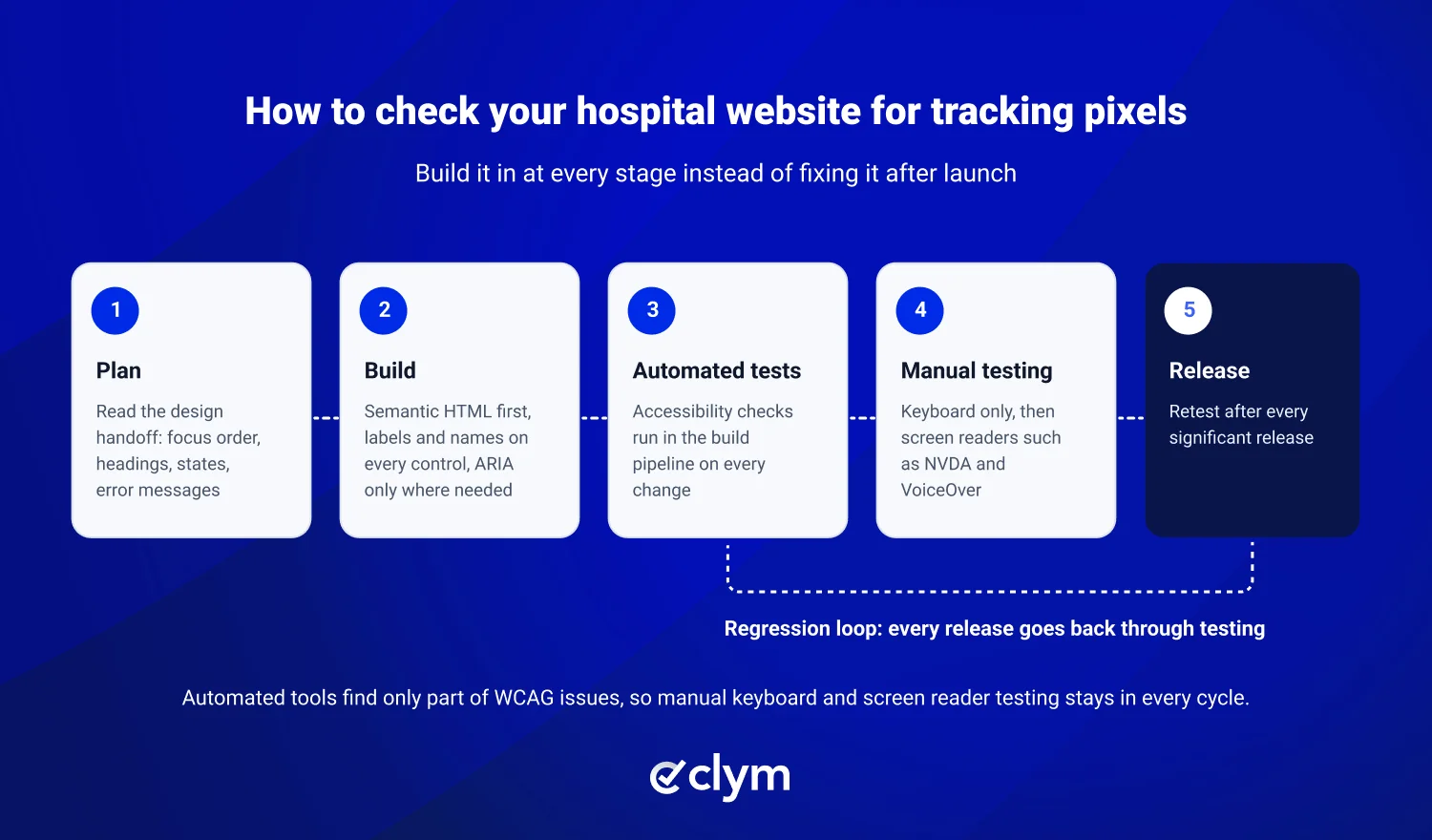
The following ten steps guide developers through the process of building a website that upholds the standards set by WCAG.
Step | Action | What to do |
|---|---|---|
Run a baseline accessibility audit | Test representative page templates and user journeys using automated tools and manual evaluation. | |
Implement semantic HTML | Use native elements such as headings, buttons, links, forms, and landmarks for their intended purposes. | |
Enable keyboard accessibility | Design and test interactive features for keyboard operation, logical focus order, visible focus, and the absence of keyboard traps. | |
Add accessible names and descriptions | Associate labels with controls and use ARIA when native HTML cannot express the necessary semantics. | |
Build accessible forms | Programmatically associate labels, instructions, and error messages with their fields. | |
Make dynamic content accessible | Manage focus and status announcements appropriately for dialogs, menus, notifications, and single-page application updates. | |
Support responsive accessibility | Verify reflow, text resizing, zoom, orientation, and pointer interactions at required test conditions. | |
Address media and document accessibility | Implement caption support, accessible media controls, and accessible downloadable documents. | |
Test with assistive technologies | ||
Integrate accessibility into QA | Add automated tests to development workflows, perform manual regression testing, and retest after significant releases. |
The website developer plays an important role in creating an ADA accessible website. Their skills make accessible functionality a reality. The work starts with auditing the site for issues, and Clym’s free Scanner can help. It can also assist with websites that need to be rechecked after significant releases. This tool makes it easy to identify potential gaps in accessibility features that the developer should address.
For a more personalized strategy, contact a member of our team today.
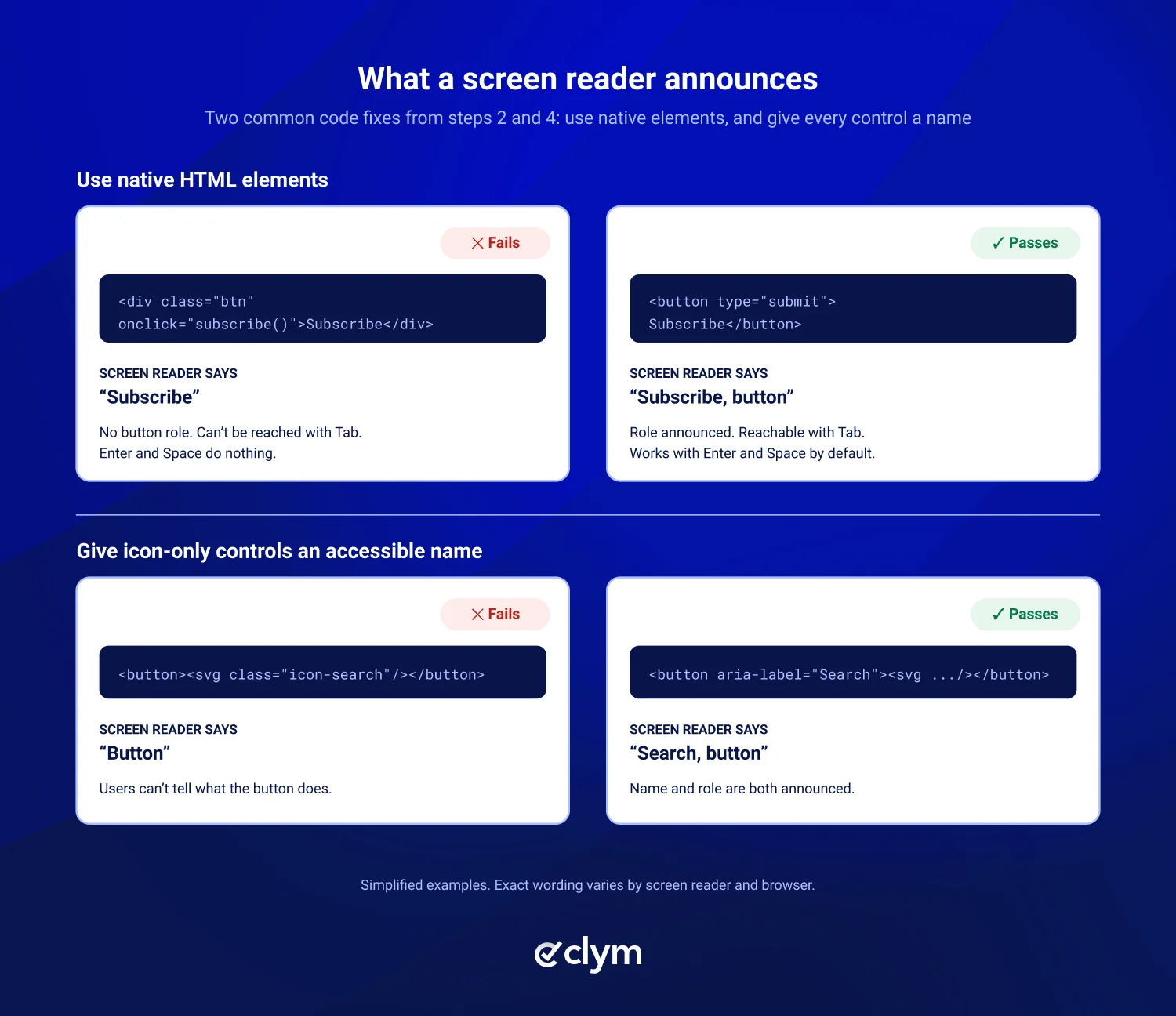
Use native HTML whenever possible. Elements like buttons, links, and form controls already provide built-in accessibility features, including appropriate roles and keyboard behavior. ARIA can add information for assistive technologies when native HTML isn’t enough, especially for custom components like tabs and comboboxes. Incorrect ARIA can create accessibility barriers, so use it carefully.
No. Automated tools catch issues like missing form labels, empty buttons, missing alternative text, and low contrast, but many WCAG criteria require human judgment. Logical focus order, whether alternative text is meaningful, and how a component behaves with a screen reader all need manual testing. That is why the checklist pairs automated tests with keyboard and screen reader testing.
Test with the screen readers your users rely on most. In WebAIM's 2024 screen reader user survey, JAWS (40.5%) and NVDA (37.7%) were the most common primary desktop screen readers, and 70.6% of respondents used VoiceOver on mobile. A practical setup is NVDA with Chrome or Firefox on Windows, VoiceOver with Safari on macOS and iOS, and TalkBack on Android.
A keyboard trap happens when a keyboard user can move focus into a part of the page, such as a modal, embedded video player, or third-party widget, but cannot move focus back out with the keyboard. WCAG success criterion 2.1.2 No Keyboard Trap (Level A) requires that users can always leave a component using the keyboard alone.
Single-page applications should make navigation changes and dynamic updates understandable to assistive technology users. This may involve moving keyboard focus when navigating between views, updating page titles, and using ARIA live regions to announce important status changes, such as an item being added to a cart. Developers should test these interactions with a keyboard and screen reader.

Compliance Officer
Compliance Officer | CIPP/E (IAPP) | CPACC (IAAP)
Alex is a Compliance Officer and Content Developer at Clym, where he researches and writes about everything related to data privacy and web accessibility compliance for businesses, helping them stay informed on their compliance needs and spreading awareness about making the web safer and more inclusive. When he's not writing about compliance, Alex has his nose in a book or is hiking in the great outdoors.